Understand Basics and Fundamentals of Computer Networking
Published: 21 Nov 2025
Computer networking is the backbone of modern communication and information sharing. Every time you connect to the internet, send an email, or share a file with a colleague, you’re using a computer network. At its core, a computer network is a system that allows devices, like computers, smartphones, and printers, to communicate and exchange data. With billions of devices connected around the world, networks enable fast and secure transfer of information. These networks can range from a small local network in your home to a massive, global network like the internet. In fact, the global network of interconnected devices and servers is responsible for much of today’s digital transformation in business, education, and entertainment. Let’s explore the computer networking.
Basic terms of computer Network
The basic terms of computer networking are following:
1. Network
A network is a system of connected devices that can communicate with each other. These devices can be computers, smartphones, printers, and more. Networks allow sharing of resources like files and internet connections.
2. IP Address
An IP address is a unique identifier for each device connected to a network. It allows devices to communicate with each other by directing data to the correct location. There are two main types: IPv4 (32-bit) and IPv6 (128-bit).
3. Nodes
In a network, a node is any device that is connected to the network and can send or receive data. This can include computers, printers, smartphones, routers, and switches. Nodes are essential because they allow devices to communicate with each other within the network.
4. Topology
Network topology refers to the layout or structure of how devices in a network are arranged and connected. It defines the way in which data flows between devices, ensuring communication happens smoothly. Common types of topologies include bus, star, ring, and mesh, each with its own strengths and weaknesses.
5. Protocol
A protocol is a set of rules that define how data is transmitted and received over a network. It ensures devices understand each other’s messages and communicate effectively. Common networking protocols include TCP/IP (Transmission Control Protocol/Internet Protocol), HTTP (HyperText Transfer Protocol), and FTP (File Transfer Protocol).
6. Firewall
A firewall is a security device or software that monitors and controls the traffic entering and leaving a network. It helps protect the network from harmful or unauthorized access. Firewalls can be hardware-based or software-based, depending on the setup.
7. DNS (Domain Name System)
DNS is like a phonebook for the internet. It translates domain names, like www.example.com, into IP addresses that computers use to locate each other. DNS makes it easier for us to access websites without remembering complicated numerical addresses.
Working of Computer Network
Computer networking works by connecting different devices, such as computers, printers, and smartphones, so they can communicate and share resources. Each device on the network has a unique identifier, called an IP address, which allows it to send and receive data. When you request a webpage, for example, your device sends a signal to the server using the IP address of that website. The server then responds by sending the requested data back to your device. This exchange of data happens through a series of routers, switches, and cables, depending on the network’s setup. Routers play a key role in directing data to its destination, while switches ensure that the data reaches the correct device within a local network.
Data travels in small chunks called packets, which are sent across the network via different routes to reach their destination. Once the packets arrive, they are reassembled into the original data. This process uses various networking protocols, such as TCP/IP, to ensure data is sent reliably and accurately. TCP (Transmission Control Protocol) ensures the data is received in the correct order, while IP (Internet Protocol) helps route the data. In wireless networks, Wi-Fi signals are used instead of physical cables, though the underlying principles remain the same. The security of the network is maintained through firewalls and encryption, which protect the data from unauthorized access and cyber threats.
Key Components of Computer Networking
The keys components of Computer networking are following:
1. Networking Devices
Networking devices are the tools that allow computers, smartphones, and other equipment to connect and communicate across a network. They manage data flow, enable internet access, and ensure information reaches the right place quickly and safely.
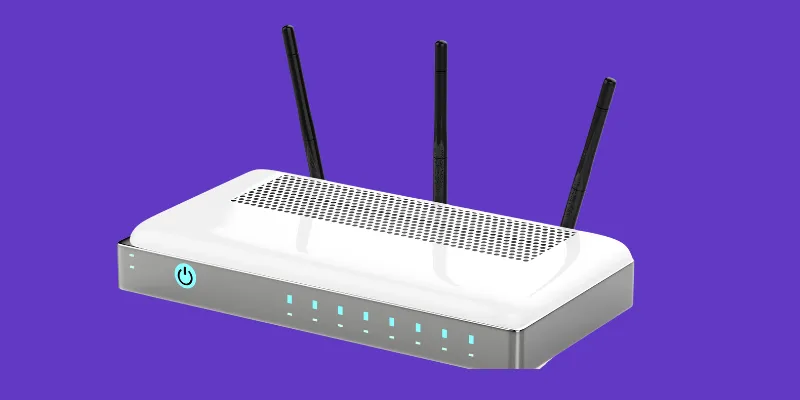
1. Router
A router connects different networks, such as your home network to the internet. It directs data traffic between devices on your local network and external networks. Routers use IP addresses to determine the best path for data to travel. In addition to managing internet traffic, routers often provide built-in security features like firewalls. They also handle the distribution of IP addresses to devices on your network. Without a router, your devices wouldn’t be able to access the internet.
2. Switch
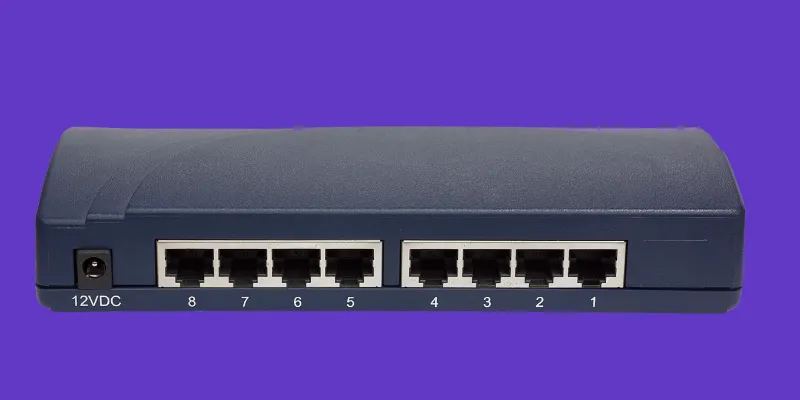
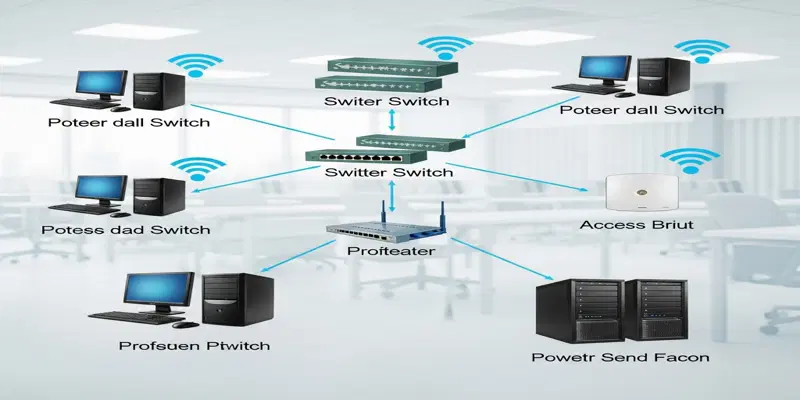
A switch is a device that connects multiple devices, such as computers, printers, and servers, within the same local area network (LAN). It intelligently forwards data to the device that it’s meant for, based on the device’s MAC address. This makes it more efficient than a hub, which sends data to all devices on the network. Switches help improve network performance by reducing unnecessary traffic. They operate at the data link layer of the OSI model and are essential for larger networks where many devices need to communicate.

3. Hub
A hub is a simple device that connects multiple devices in a network, allowing them to communicate with one another. However, unlike a switch, a hub broadcasts the data it receives to all connected devices, regardless of who the data is intended for. This results in network inefficiency and can cause delays, especially in larger networks. Hubs operate at the physical layer of the OSI model and are less common today, replaced by more efficient switches. They are best suited for small or simple networks with limited traffic.
4. Modem
A modem connects your local network to the internet by converting digital data from your devices into analog signals that can travel over phone lines, coaxial cables, or fiber optics. It also converts the incoming analog signals back into digital form for your devices to understand. The modem acts as a bridge between your network and your Internet Service Provider (ISP). Some modems combine the functions of a router, allowing devices to connect directly via Wi-Fi. A modem is required for broadband internet access, and it often needs to be activated by your ISP.
5. Access Point (AP)
An access point extends the wireless range of your network by connecting to a router and providing Wi-Fi coverage to more areas. It allows wireless devices like smartphones, laptops, and tablets to connect to the internet. Access points are especially useful in large buildings or offices where the Wi-Fi signal from the router alone may not be strong enough to cover the entire area. Some APs are designed to work with multiple routers to ensure seamless wireless connectivity across large spaces. They are essential for creating a stable, wide-reaching wireless network.
6. Bridge
A bridge connects two different network segments, allowing them to communicate with each other as if they were part of the same network. It filters traffic between these segments, only allowing necessary data to pass through, thus reducing congestion. Bridges help extend the range of a network by linking distant network segments. They operate at the data link layer of the OSI model and are commonly used to connect two buildings or different areas within a building. By filtering traffic, a bridge helps improve overall network performance and organization.
7. Network Interface Card (NIC)
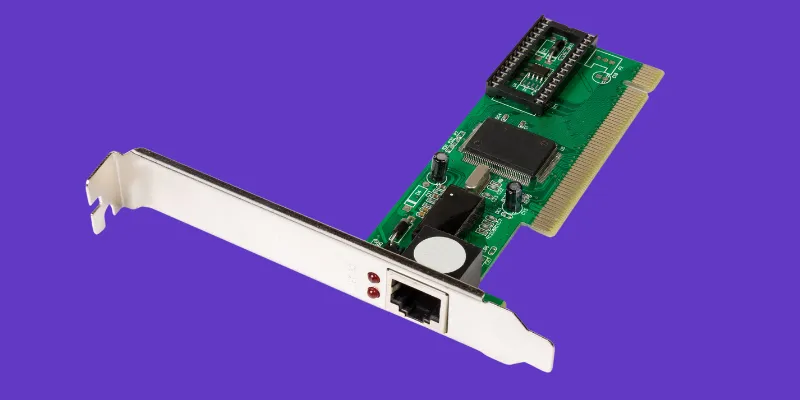
A NIC is a hardware component inside a device, such as a computer, that allows it to connect to a network. NICs can be either wired (using Ethernet cables) or wireless (using Wi-Fi). Each NIC has a unique Media Access Control (MAC) address that identifies it on the network. This allows devices to communicate with each other through a wired or wireless connection. NICs are essential for devices to send and receive data over a network, making them a critical part of every connected device.
8. Server
A server is a powerful computer or device that provides services, resources, or data to other devices (clients) on a network. Servers store data, run applications, or provide access to shared resources like printers and files. They can be dedicated to one specific task, such as a web server or file server, or serve multiple roles. Servers often run continuously and are designed to handle large amounts of traffic and data requests from clients. In a typical network, the server responds to client requests, whether it’s for a website, email, or shared files.
2. Links
The types of links in computer networking are following:
1. Wired Links in Computer Networking
Wired links use physical cables to connect devices in a network, allowing them to communicate with each other. The most common types of wired links are Ethernet cables (like Cat5, Cat6), fiber optic cables, and coaxial cables. Ethernet cables are widely used in home and office networks due to their reliable performance and reasonable cost. Fiber optic cables use light signals to transmit data, offering much faster speeds and greater bandwidth over long distances compared to traditional copper cables. Wired connections are often preferred for their stability, as they are less prone to interference and signal loss, which makes them ideal for high-demand environments such as gaming, video streaming, and corporate networks. However, the major drawback is that they require physical installation of cables, which can be challenging in large or complex spaces.
2. Wireless Links in Computer Networking
Wireless links allow devices to connect and communicate without the need for physical cables, using radio waves to transmit data. The most common wireless technology is Wi-Fi, which enables devices like laptops, smartphones, and printers to connect to the internet or local network without the limitations of wired connections. Wireless links provide the advantage of mobility and flexibility, allowing devices to stay connected while moving around. However, they are more prone to interference from physical barriers like walls, other electronic devices, or weather conditions, which can affect signal strength and speed. Wireless networks also have a limited range, so the farther a device is from the router or access point, the weaker the signal becomes. Despite these limitations, wireless links are popular for home networks, public hotspots, and mobile devices due to their convenience and ease of setup.
3. Communication Protocols
Communication Protocols is a set of rules that describes how data is transmitted and received between devices in a network. Some common protocols are Ethernet, wireless LAN, cellular standards etc. The three functional layers of communication links are following:
1. Network Access Layer
The Network Access Layer is responsible for the physical transmission of data over the network. It deals with hardware, such as cables, switches, and network interface cards (NICs). This layer controls how data is placed on the network medium, ensuring it reaches its destination. It includes protocols like Ethernet and Wi-Fi, which help manage data transmission in local networks.
2. Transport Layer
The Transport Layer manages end-to-end communication between devices, ensuring data is transferred reliably. It handles the segmentation of data, error detection, and flow control. Key protocols at this layer include TCP (Transmission Control Protocol), which ensures data is delivered in the correct order, and UDP (User Datagram Protocol), which sends data without error-checking for faster transmission. This layer is crucial for maintaining data integrity and reliability.
3. Internet Layer
The Internet Layer is responsible for routing and addressing data across networks, enabling devices to communicate over long distances. It defines how packets are addressed and directed to their destination using IP (Internet Protocol). The most common protocol at this layer is IPv4 or IPv6, which assigns unique IP addresses to each device. This layer ensures that data can find its way from the sender to the receiver.
4. Application Layer
The Application Layer is the top layer of the network protocol stack and directly interacts with end-user applications. It provides services like email, file transfer, and web browsing through protocols like HTTP, FTP, and SMTP. This layer enables users to access network resources and applications, translating application data into network formats. It acts as the interface between network services and the end-user.
Network Defense
Network Defense involves protecting a network from unauthorized access and cyberattacks using tools like firewalls, encryption, and intrusion detection systems (IDS). It includes strategies like secure authentication, regular updates, and network segmentation. The goal is to maintain data integrity, prevent breaches, and ensure network availability. Monitoring network traffic for suspicious activity is also key to effective defense.
Types of Computer Networking
The computer networking can be classified based on several criteria like range, size, topology, transmission medium. The following types are classified on the base of geographical scale:
1. LAN (Local Area Network)
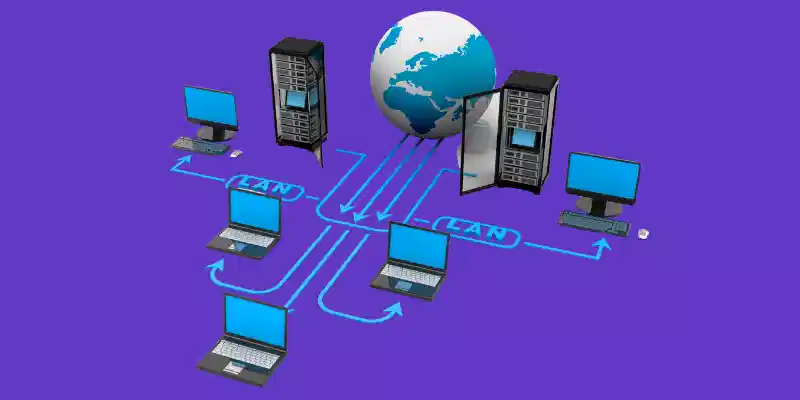
A LAN is a network that connects devices within a small geographical area, like a home, office, or school. It typically uses Ethernet or Wi-Fi for high-speed communication. LANs are inexpensive to set up and ideal for sharing files, printers, and internet connections.
2. WAN (Wide Area Network)
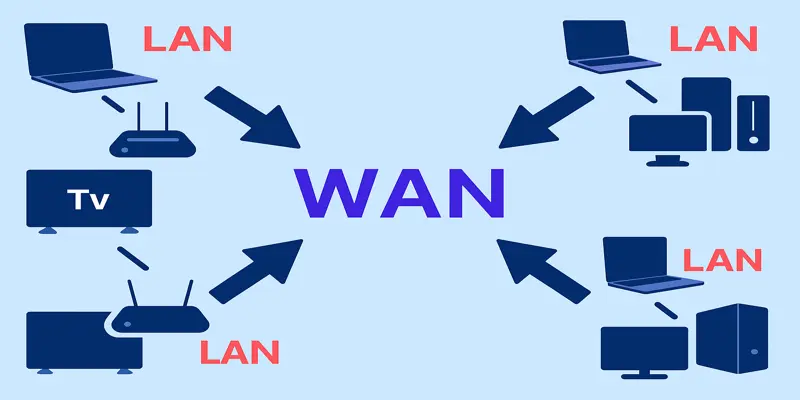
A WAN covers a large area, such as a city, country, or even across continents. It connects multiple LANs and is often powered by technologies like fiber optics, satellite links, or leased lines. The internet is the most common example of a WAN.
3. MAN (Metropolitan Area Network)
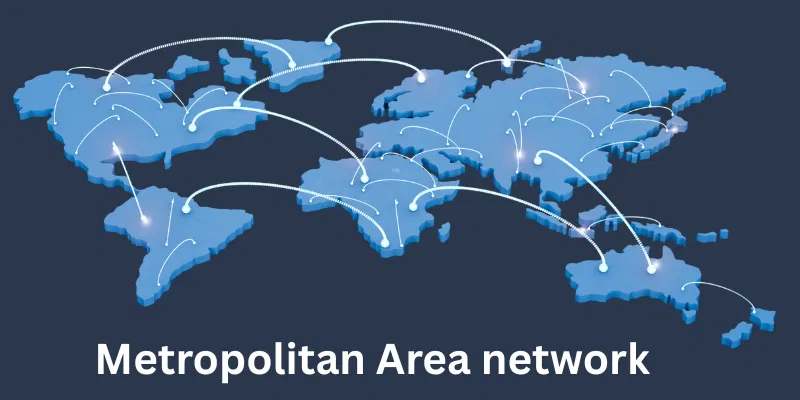
A MAN is larger than a LAN but smaller than a WAN, typically covering a city or a large campus. It connects multiple LANs within a specific geographical area, like a university or city government buildings, and is often used for businesses or organizations needing regional communication.
4. PAN (Personal Area Network)
A PAN is used to connect devices within a very small area, usually within a few meters, like connecting a smartphone to a laptop or Bluetooth headset. It’s ideal for personal devices and typically uses wireless technologies like Bluetooth or Wi-Fi.
5. SAN (Storage Area Network)
A SAN is a dedicated network designed to provide high-speed data access and storage. It connects storage devices (such as disk arrays and tape libraries) to servers, allowing for centralized storage management. SANs are commonly used in data centers to improve performance and reliability of storage systems.
6. VPN (Virtual Private Network)
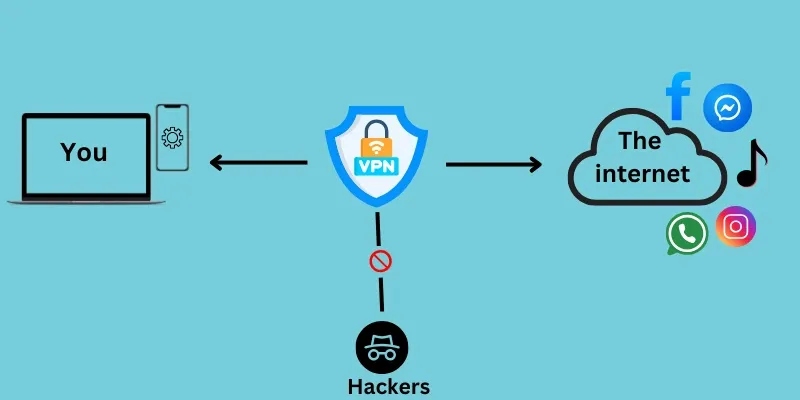
A VPN is a secure, private connection over the internet that allows users to send and receive data as if they were directly connected to a private network. It is often used to protect data, bypass geographic restrictions, or securely access remote resources while maintaining privacy.
7. Cloud Network
A Cloud Network is a system of virtualized servers and services that are hosted in the cloud, enabling data and applications to be accessed over the internet. It eliminates the need for physical hardware, providing scalability, flexibility, and remote access to resources and services. Popular cloud services include Google Cloud, AWS, and Microsoft Azure.
Based on organizational intent, networks can be classified as:
1. Internet
The Internet is a global network that connects millions of private, public, and governmental networks. It allows devices worldwide to communicate and share information using standardized protocols like TCP/IP. The internet supports a variety of services, such as browsing, email, and social media, and is accessible to anyone with an internet connection.
2. Intranet
An Intranet is a private network used by an organization to connect its employees or members. It operates like the internet but is restricted to authorized users within the organization. Intranets are used to share internal documents, communicate within teams, and provide access to business tools securely.
3. Extranet
An Extranet extends an organization’s private network to external users, like business partners, suppliers, or customers. It allows controlled access to certain parts of the organization’s internal network without fully opening it to the public. Extranets are commonly used for collaboration, file sharing, and communication with trusted external parties.
4. Darknet
A Darknet is a part of the internet that is intentionally hidden and inaccessible through traditional web browsers. It is used for anonymous communication and often involves the use of special software like Tor. While it can be used for privacy and free speech, the darknet is also associated with illegal activities due to its unregulated nature.
Network Topology
Network Topology refers to the arrangement or layout of devices, cables, and connections in a network. It defines how different devices in a network are connected and how data flows between them. The structure of the network influences its performance, scalability, and fault tolerance. Here are the most common types of network topologies:
1. Bus Topology
In Bus Topology, all devices are connected to a single central cable called the “bus.” Data sent from a device travels along the bus and is received by all other devices, but only the intended recipient processes the data. This topology is simple, cost-effective, and easy to implement but can be less reliable. If the main bus cable fails, the entire network can go down, and it can experience performance issues as more devices are added.
2. Star Topology
In Star Topology, all devices are connected to a central hub or switch. The central device manages communication between devices, ensuring efficient data traffic. This setup is easy to maintain and troubleshoot because if one device fails, the rest of the network remains unaffected. However, if the central hub or switch fails, the entire network can be disrupted.
3. Ring Topology
In Ring Topology, devices are connected in a circular fashion, with data flowing in one direction around the ring. Each device receives the data and passes it to the next device until it reaches its destination. Ring topology is fast and predictable, but if any device or connection fails, the whole network can be affected. It’s best used in smaller networks with fewer devices to minimize disruption.
4. Mesh Topology
Mesh Topology involves connecting every device to every other device in the network. This provides multiple paths for data to travel, making the network highly redundant and reliable. If one connection fails, data can still reach its destination via another path, ensuring continuous operation. However, the complexity and cost of installing so many connections make it best suited for critical or high-availability networks.
5. Hybrid Topology
Hybrid Topology combines two or more different topologies to create a more customized network. For example, a network could use star topology within individual buildings and connect them using a bus topology. This flexibility allows businesses to take advantage of the strengths of multiple topologies and tailor the network to meet specific needs. Hybrid topologies are often used in large or complex networks to improve performance and scalability.
A network helps connect all your devices so they can communicate with each other and share resources, like printers or files. It also allows you to access the internet from multiple devices at once. Without a network, each device would need its own connection.
Wi-Fi is a wireless connection that lets devices connect to the internet without cables. Ethernet uses physical cables to connect devices, offering a more stable and faster connection. Wi-Fi is more convenient, but Ethernet is often faster and more reliable.
An IP address is a unique number assigned to each device on a network, helping them communicate with each other. It’s like a home address for your device, allowing data to reach the right location. There are two types: IPv4 (older) and IPv6 (newer).
A firewall is a security system that monitors and controls incoming and outgoing network traffic. It helps protect your network from unauthorized access and threats like hackers or viruses. Think of it as a security guard for your devices.
Slow internet can be caused by weak Wi-Fi signals, too many devices using the network, or issues with your internet service provider. Moving closer to the router or limiting the number of connected devices may help. Sometimes, restarting your router can fix temporary issues.
You can improve your Wi-Fi signal by placing your router in a central location, away from walls and obstructions. Reducing the number of devices connected to your Wi-Fi can also help. Upgrading to a higher-quality router may be a good option if your signal remains weak.
Conclusion
So guys, in this article, we’ve covered Computer networking in detail, from the basics of how networks connect devices to troubleshooting common issues. Understanding how computer networks work is not only useful for solving tech problems but also empowers you to take control of your digital experience. Whether you’re at home, in the office, or on the go, knowing how to optimize your network can improve performance and security. My personal recommendation is to start with the basics—learn about your router, your Wi-Fi settings, and your devices. By understanding the core elements of your network, you can fix issues faster and avoid frustration. Now, I encourage you to explore your home or office network and see how you can make it more efficient. Don’t wait until the next slow connection or Wi-Fi issue—take action now!

- Be Respectful
- Stay Relevant
- Stay Positive
- True Feedback
- Encourage Discussion
- Avoid Spamming
- No Fake News
- Don't Copy-Paste
- No Personal Attacks
- Be Respectful
- Stay Relevant
- Stay Positive
- True Feedback
- Encourage Discussion
- Avoid Spamming
- No Fake News
- Don't Copy-Paste
- No Personal Attacks
