How to Speed Up Windows 11 on Low-End PC
Published: 20 Jan 2026
Man, I’ve gotta tell ya, I’ve probably saved more “potato PCs” from the digital graveyard than I have cups of coffee in a day – and that’s saying something. Picture this: my buddy’s ancient Dell laptop that sounded like a hairdryer on steroids every time he tried to open Netflix. Or that time in a dingy Manchester flat where a client’s rig took five minutes to load Word. We’ve all been there, right? Staring at that endless spinning wheel, wondering if Windows 11 is personally out to get you.
If your low-end PC is crawling slower than a snail in treacle, stick with me. I’m gonna walk you through how to speed up Windows 11 without needing a computer science degree or a wallet transplant. No fluff, no shady software – just real tricks I’ve used on beat-up machines across rainy UK streets, sweaty US summers, frosty Canadian winters, and brutal Aussie heatwaves. Let’s turn that frustration into “hey, this actually works!”
Why Is Your Low-End PC Acting Like It’s Drunk?
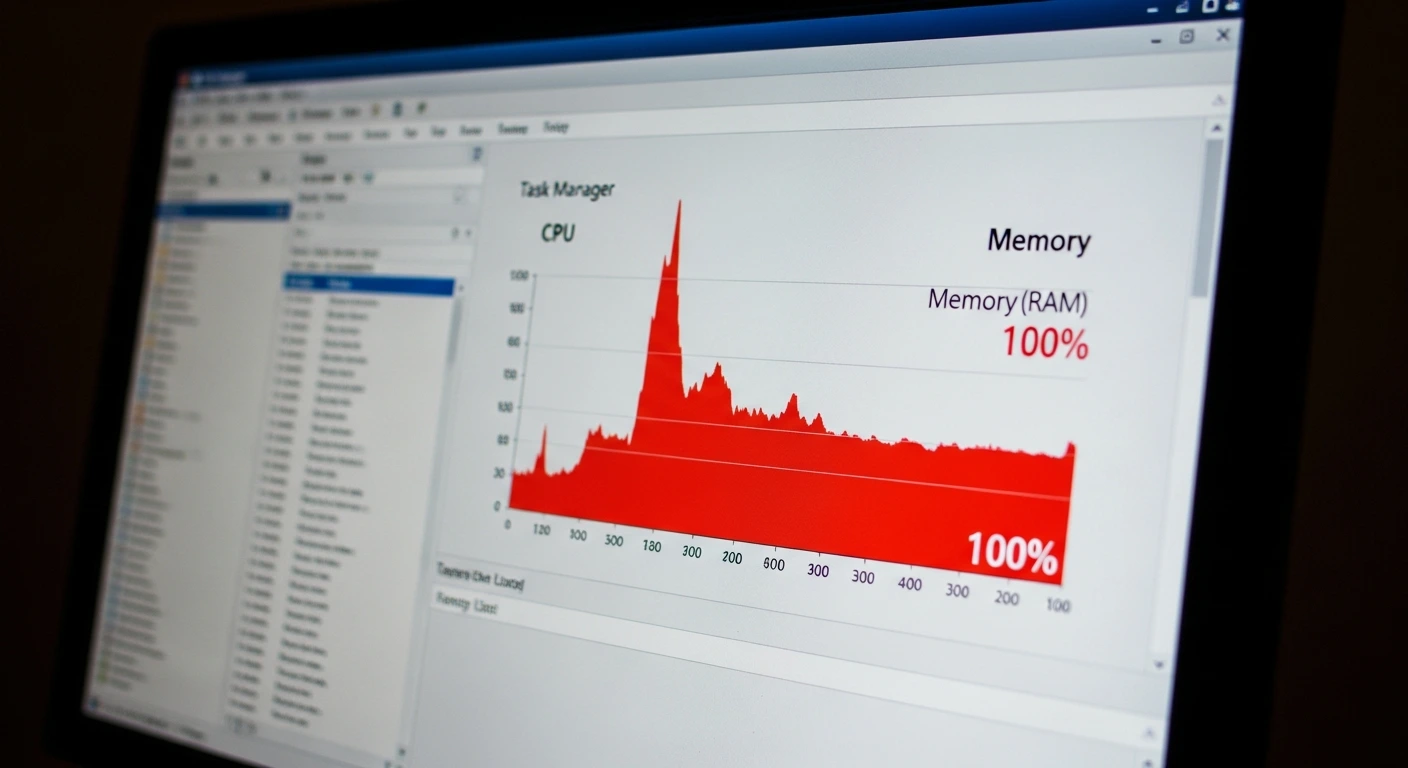
Ever wonder why your shiny new Windows 11 feels like it’s running on dial-up? It’s not just “old hardware” – though yeah, that doesn’t help. Nope, it’s usually a combo of sneaky gremlins piling up.
First off, startup apps. Windows loves inviting the whole neighbourhood to the boot party: Spotify, Discord, some random printer software you haven’t touched since 2018. Boom – your 4GB RAM is toast before you even type a password.
Then there’s the visuals. Those smooth animations? Cute on a gaming beast, but on low-end gear? They’re like putting racing slicks on a shopping trolley. And don’t get me started on background hogs – antivirus scanning, cloud syncs, “helpful” manufacturer apps all munching CPU like it’s free pizza.
Heat’s the silent killer too, especially when the weather turns. But more on that later. Bottom line: low-end PCs aren’t doomed. You just gotta speed up Windows 11 by stripping the nonsense and letting the basics breathe. I’ve done it a hundred times – trust me, it works.
Everyday Tweaks That’ll Actually Make a Difference
Alright, let’s roll up our sleeves. These are my go-to Windows 11 tweaks for any low-end clunker, no matter where you are. I’ve tested ’em from London pubs to Toronto basements. Start here – you’ll feel the difference in an hour.
Step 1: Murder the Startup Zombies
This one’s a game-changer. Seriously, why let apps loiter in the background?
- Hit Ctrl + Shift + Esc for Task Manager (fancy, right?).
- Flip to the Startup apps tab.
- Spot the culprits – anything non-essential like Steam (unless you’re gaming right now), OneDrive if you’re not syncing, or that bloody Adobe updater.
- Right-click > Disable. Done.
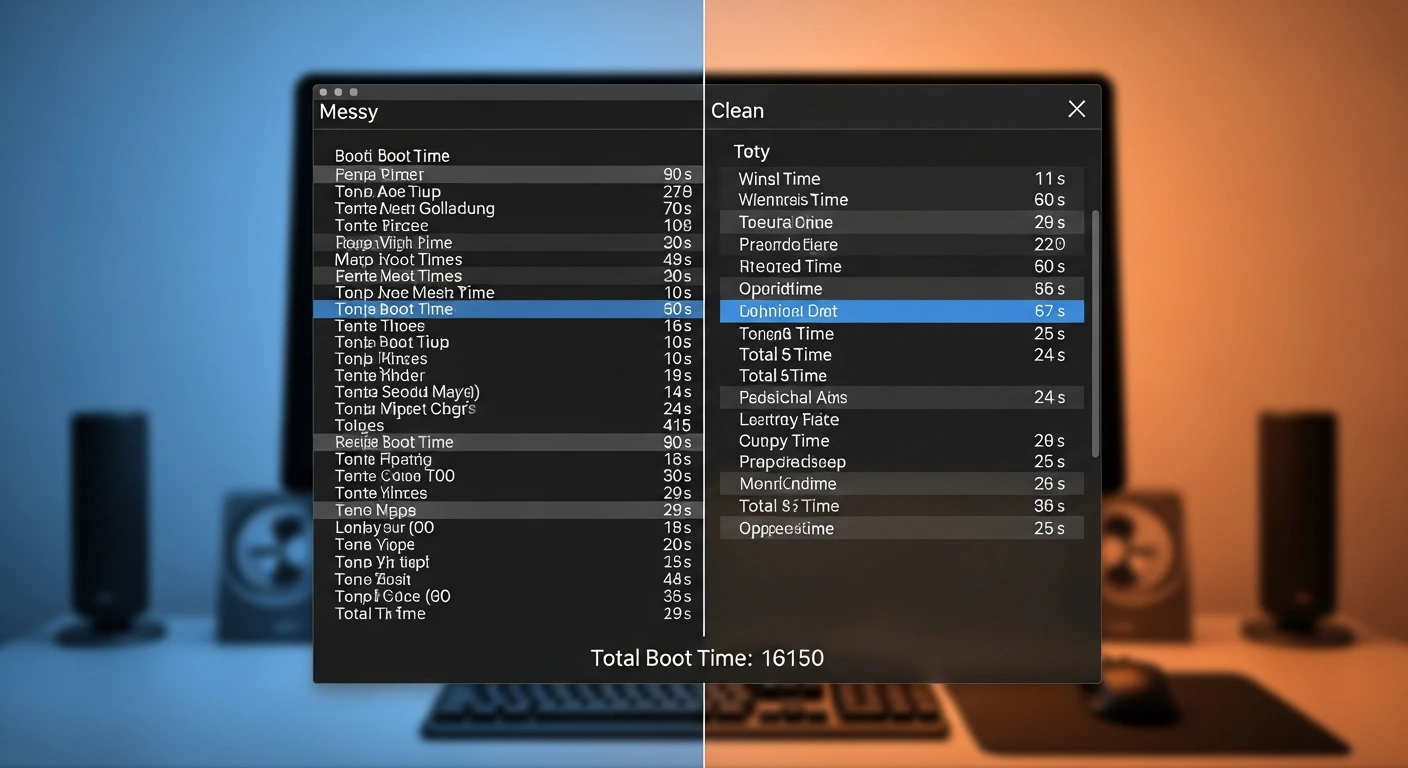
Pro tip from a decade of fixing messes: Keep drivers and antivirus. Disable the rest. My old UK client’s boot time went from “make a cuppa” to “sip said cuppa” in seconds.
Upsides:
- Blazing boot (okay, snappier anyway).
- Frees up RAM for actual work.
Downsides:
- First launch of disabled apps might take a beat longer. Worth it? Hell yes.
Step 2: Power Plan – Stop Coddling Your PC
Windows defaults to battery-sipping mode on laptops. Fine for Netflix binges, death for productivity.
- Win + X > Power Options.
- Slider to Best performance (plugged in only, duh).
Desktops? Ditch any “power saver” nonsense. Your wall socket’s not charging by the kilowatt.
Step 3: Ditch the Eye Candy (Keep It Livable)
Windows 11’s all glass and shadows – pretty, but pricey on old GPUs.
- Win + R >
sysdm.cpl> Enter. - Advanced > Performance Settings.
- Pick Adjust for best performance, then tick back faves like font smoothing and thumbnails.
Suddenly, menus snap open instead of sashaying. Huge low-end PC speedup without looking like Windows 95.
Step 4: Storage Spring Clean (No Dodgy Tools)
“PC optimizers” online? Mostly scams. Use what Microsoft’s baked in.
- Settings > System > Storage > Cleanup recommendations.
- Nuke temp files, Recycle Bin, those massive Delivery Optimization caches.
- Flip on Storage Sense for auto-magic.
Safety first: Skip registry cleaners. I’ve seen ’em brick more rigs than they’ve fixed.
Step 5: Background App Purge
Settings > Apps > Installed apps. Be ruthless – old games, trialware, browser toolbars? Bin ’em.
Privacy > Background apps: Turn off Weather, Xbox Game Bar. Unless you’re a meteorologist, why?
Bonus Hardware Nudge
Can’t afford upgrades? Dream on 8GB RAM or a cheap SSD. But even without, these tweaks optimize Windows 11 performance like magic.
Weather Hacks You Never Knew You Needed
Here’s where it gets personal. I’ve troubleshot PCs in Manchester drizzle, Texas scorchers, Vancouver chill, and Sydney swelters. Weather messes with hardware more than folks think – heat throttles CPUs, dust clogs fans. Local weather bosses have tips that double for your rig.
UK: Heatwaves in the Rainy Nation?
Yeah, UK summers sneak up like that ex at a wedding. Not scorching daily, but those 30°C spikes? Oof. Met Office says ventilate early/late, block sun with blinds. Same for your PC room – keeps temps down, throttling at bay.
My Birmingham tale: Client’s desktop froze on calls. Culprit? Sunny window, dusty corner. Cleaned vents, half-closed blinds (Met Office style), moved tower. Freezes gone. Speed up Windows 11 tweaks shone brighter once it wasn’t baking.
USA: AC Warriors vs Heat Beasts
US heat? Biblical. NOAA’s heat tips – shade, hydration – apply to laptops too. Avoid peak sun, schedule heavy tasks for dawn/dusk.
Midwest meltdown memory: Mate’s laptop turned furnace mid-heatwave. Task Manager screamed thermal throttle. Stand + shade + lighter Windows 11 tweaks (startup cull, visuals off). Revived!
- No hot cars (temps explode).
- External fan nearby, not blasting vents.
- AC on? Golden hour for work.
Canada: Dusty Dry Air Drama
Indoors toasty from heaters, summers warming per Environment Canada. Dust city.
Toronto fix: Laptop stuttered from clogged fans. Outdoor compressed air blast, couch-to-stand swap, startup purge. Snappy again.
Australia: Heatwave Hell Survival
Bureau of Meteorology heat warnings? Your PC’s crying too. Coolest room, lighter loads midday.
Queensland gamer saga: Rig shutdown mid-stream. Airflow fix, blind pulls, evening tasks. Stable + smoother.
(Suggested image: PC on elevated stand, fan whirring happily in cool room.)
Don’t Screw Yourself: Safety 101
Enthusiasm’s great, accidents not.
| Software |
|---|
|
| Hardware: |
|---|
|
Aggressive Tweaks: Worth It or Nah?
Wins:
- Quick boots/shutdowns.
- No stutters.
- Multitask magic on 4GB.
Risks:
- Overkill breaks apps.
- Bare UI feels stark.
Balance, folks. Usable > perfect.
Final Thoughts: Rescue Your Rig Today
Look, I’ve sweated over low-end lemons in four countries, turning ’em into lemonade. Speed up Windows 11 ain’t rocket science – it’s ruthless pruning + common sense.
Key takeaways:
- Slash startups, visuals, bloat.
- Weather-proof your setup.
- Hardware bumps if possible.
- Safe plays only.
Your turn: Pick three tweaks NOW. Startup cull, power tweak, quick clean. Test for a week. Feels better? Stack more. Your potato PC deserves respect – make it happen!
Nah, these are all standard Windows settings and basic cleaning. No soldering irons or black-market parts involved. Hardware cleaning’s fine as long as you don’t force components – just air and gentle wipes.
Real talk: 20-50% snappier boot times, less stuttering in daily use. Not turning a 2008 netbook into a RTX 4090, but usable for browsing, Office, light streaming. Results vary by how bloated it was.
Huge difference, yeah. 4GB to 8GB RAM? Night and day. HDD to SSD? Boot in 10 seconds vs 2 minutes. Tweaks help first – if cash allows, upgrade after. Check your mobo specs before buying.
System Restore’s your mate. Search “Create a restore point” beforehand, name it “Pre-speedup.” Revert in 5 minutes if needed. Worst case, Windows repair from Settings > Recovery.
Steer clear. Free versions push ads, pro versions rarely beat built-in tools. I’ve fixed more CCleaner-borked registries than I care to count. Stick to Microsoft’s stuff – it’s free and safer.
CPUs throttle at 85-95°C to avoid damage. Fans spin wild, performance tanks. Hot room = hot PC = lag. Weather tips keep it under control so your tweaks actually shine.
Mostly, yeah. Startup apps, visuals, storage sense – all similar. Windows 11’s a bit heavier, so gains feel bigger here. Same principles though.
Conclusions:
Look, I’ve battled low-end lemons from Manchester to Queensland, and speed up Windows 11 is totally doable without fancy gear. Slash startup bloat, tame visuals, clean vents, dodge heat throttling – stack three tweaks today and watch that spinning wheel vanish. Your potato PC’s got life left; unleash it now!

- Be Respectful
- Stay Relevant
- Stay Positive
- True Feedback
- Encourage Discussion
- Avoid Spamming
- No Fake News
- Don't Copy-Paste
- No Personal Attacks
- Be Respectful
- Stay Relevant
- Stay Positive
- True Feedback
- Encourage Discussion
- Avoid Spamming
- No Fake News
- Don't Copy-Paste
- No Personal Attacks
